Table des matières
Importing data into Gestan
 A1 proofreading not yet effective for this page. In the meantime, you can ask any questions on the forum.
It is possible to load or update data in bulk in Gestan, from text files.
- In the case of loading a file, the records read in the source file are created in the database. At a minimum, the source file must contain all mandatory fields. If a duplicate is created (for example when creating a product that already exists in the database), the creation is rejected.
- In the case of updating a file, the database records are updated with the data from the source file. The first column of the source file must contain the identifier of the record in the database, the other columns being the areas to update. If the record is not found in the database (if the source file identifier is not found in the database), the update is rejected.
Using the screen
**Access: ** Tools → Administration → Data import → Import text files
This program is reserved for users with administrative privileges. As with all programs performing mass updates, it is recommended to make a backup of the database before use, or to carry out the operation on a test database before launching the operation on a production database.
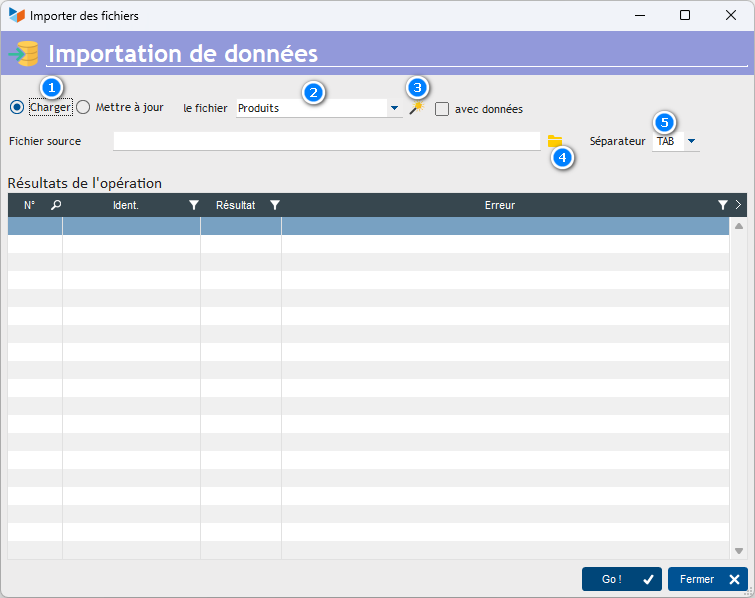
The 1 radio button allows you to specify whether you want to use the screen for file loading, or for updating.
The 2 combo allows you to specify the file to load:
- contacts
- products
- companies
- accounting entries
- stock movements
- children
- memberships
- payments
- machines (resources, rentals, maintenance)
- product families and sub-families
- work time (consumption)
Additionally, you can update:
- contacts
- products
The 3 magic wand allows you to generate an example file, ready for use. The With data check box allows you to generate an example file with the data contained in the database: this way, you can easily retrieve the necessary identifiers.
The 4 button allows you to select the file to be processed, while the 5 combo allows you to specify the separator used in the file to be processed (in csv format, the separator is generally a semicolon, but can also be a TAB).
Format of input files
The input file must be a delimited text file (TAB, comma, semicolon, or any other character). To do this, you can use a spreadsheet like LibreOffice Calc or Microsoft Excel (remember to save the file in text format with separator), or even a simple word processor like Notepad, PSPad, NotePad+, etc.
The first 5 lines of the input file will never be taken into account: these are lines which describe the data to be entered.
- Line 1: name of the section
- Line 2: long description of the section, with indications of coding, or consistency with other files.
- Line 3: type of item (text, numeric, integer, boolean (0 or 1) or memo (a large area of text, like a comment, for example).
- Line 4: indication of its obligatory nature, or not
- Line 5: example value
Simply complete the example file with the data to add or modify, starting from line 6.
 You can insert line breaks in the “memo” columns, using the code <br>: this code will be replaced by a line break when loading.
You can indicate that a line is a comment by preceding it with the “#” character.
The file generated by the file creation wizard is configured only with the settings of the current database: it may not be usable on another database.
Remember to save the file in text format! (below is an example in Libre Office. The CSV format is a text format with separator.
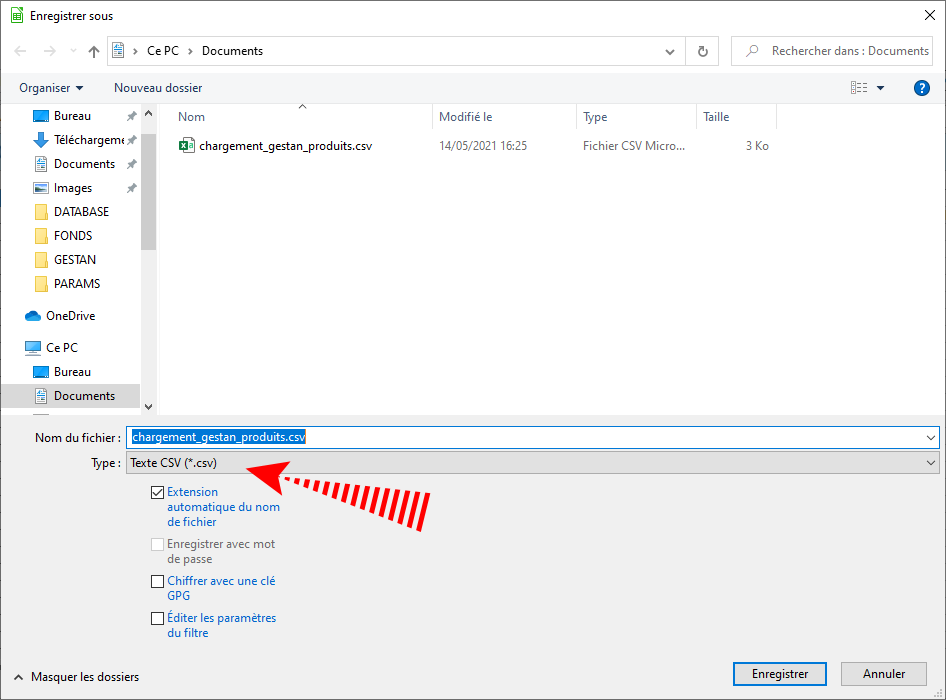
Use in adding data
Below is an example of a file for creating stock movements. The line in red has been completed and will be loaded.

For what concerns the loading of the child file, memberships, and payments a selector is displayed, allowing you to specify whether to take the contact ID as a reference, or the “external reference”.
Be careful with the creation of duplicates: for example, if you load contacts, and you have an Éléonore MAROLEX contact in your database, and the same Éléonore MAROLEX contact in your loading file, at the end of the processing, you will have two contacts Éléonore MAROLEX in your base.
Use in file update
It is possible to update:
- the contacts file
- the product file
In “Update” mode, the example file obtained with the magic wand includes all the fields that can be updated: simply delete the columns that should not be updated. However, it is mandatory to keep the first column, which is the unique identifier of the record (IDCONTACT, contact id in the case of updating the contact file, CD_PRODUIT, product code, in the case of updating of the product file).
Here is an example of a product file generated by the wizard with the database data.

Let's say we want to update the VAT rate and sales price of the product. It will be enough to keep only two columns, in addition to the product code column. For ease, it is possible to keep the product label column, as below.
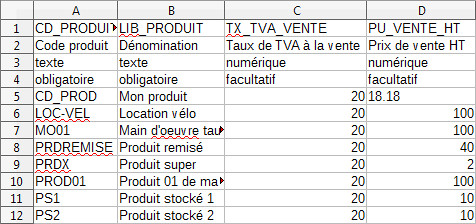
By launching the update, the VAT rates will be updated, as well as the unit prices excluding tax. The update process will also recalculate the price including tax based on the updated elements.
If you import product data, you manage stocks, and your current stock is not zero, then you must consider importing a stock movement file or an inventory, in order to ensure consistency between the current stock declared in the product sheet, and the stock movements which lead to this current stock.
 Other “Tools” articles
Connection to Gestan
Database minimization
Export Gestan database
Gestan base import
Gestan directory structure
Gestan on a USB stick
Gestan Versions
Import a chart of accounts
Import account assignments
Import contracts into Gestan
Import Google/Outlook/Notes contacts
Import parts into Gestan
Import product translations
Importing data into Gestan
Maintenance of HFSQL files
Mass Parts Removal
Quick start
Reallocation of contacts by region
Reassignment of users
Rebooking entries
Reset additional fields
Reset categories
Resetting files
Tips and tricks
Transfer your data to technical support
Zip the base