Table des matières
COMMISSIONSCO: Sales commissions
Overview
This extension calculates sales commissions over a date range based on sales amounts or quantities sold, according to commission rules defined by tiers.
Settings
Access: Tools→Application settings→Extension settings→Sales commissions
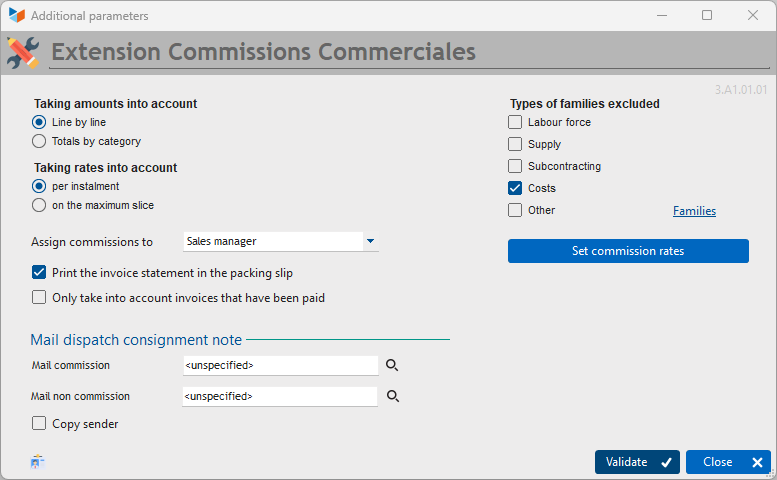
The Amounts taken into account selector allows you to specify how commissions are calculated.
- Either the calculation is performed line by line, in which case, if a sales representative issues an invoice for 100 and an invoice for 200, they will receive the commission corresponding to 100 and the commission corresponding to 200.
- Or the calculation is performed on the totals per category. In this case, if a sales representative issues an invoice for £100 and an invoice for £200, they will receive the commission corresponding to an amount of £300.
The Rate consideration selector allows you to specify how commissions are calculated. * Either the commission will be calculated bracket by bracket according to the defined rates (for example, 1000 * 10%, and 1250 * 15% if the sales representative has achieved 2250).
- or the commission is calculated at the maximum bracket rate (e.g. 2,250 * 15% if the sales representative has achieved 2,250 and the next bracket is higher than 2,250).
The Assign commissions to combo box allows you to designate the user to whom commissions are assigned, as specified on the invoice. This can be either:
- the sales manager for the invoice
- the technical manager for the invoice
- the creator of the invoice
- the sales manager for the customer
The ad hoc box allows you to choose whether or not to print the invoice statement in the commission statement, so that the calculation basis (the list of invoices and credit notes for the period) is printed in the statement.
It is possible to only take paid invoices into account when calculating sales commissions.
It is possible to exclude certain types of product families. For example, the product family ‘Shipping costs’, family type ‘costs’, should not give rise to commission.
If you wish to send commission slips by email, select an accompanying message Commission email.
If a period does not generate any commission, you can:
- not send an email, in which case do not select any message type No commission email
- send an email indicating that the period did not generate any commission, in which case select a message type No commission email.
In these message templates, you can use the keywords available for all messages (%USR_FIRST_NAME% %USR_LAST_NAME%, %SOC_RAISON%, %USR_FONCTION%, %USR_TELBUR%), as well as the following keywords:
- %USRCRT_FIRST_NAME% sales representative's first name
- %USRCRT_LAST_NAME% sales representative's surname
- %START_COMCO% start of commission calculation period
- %END_COMCO% end of commission calculation period.
Below are two examples.
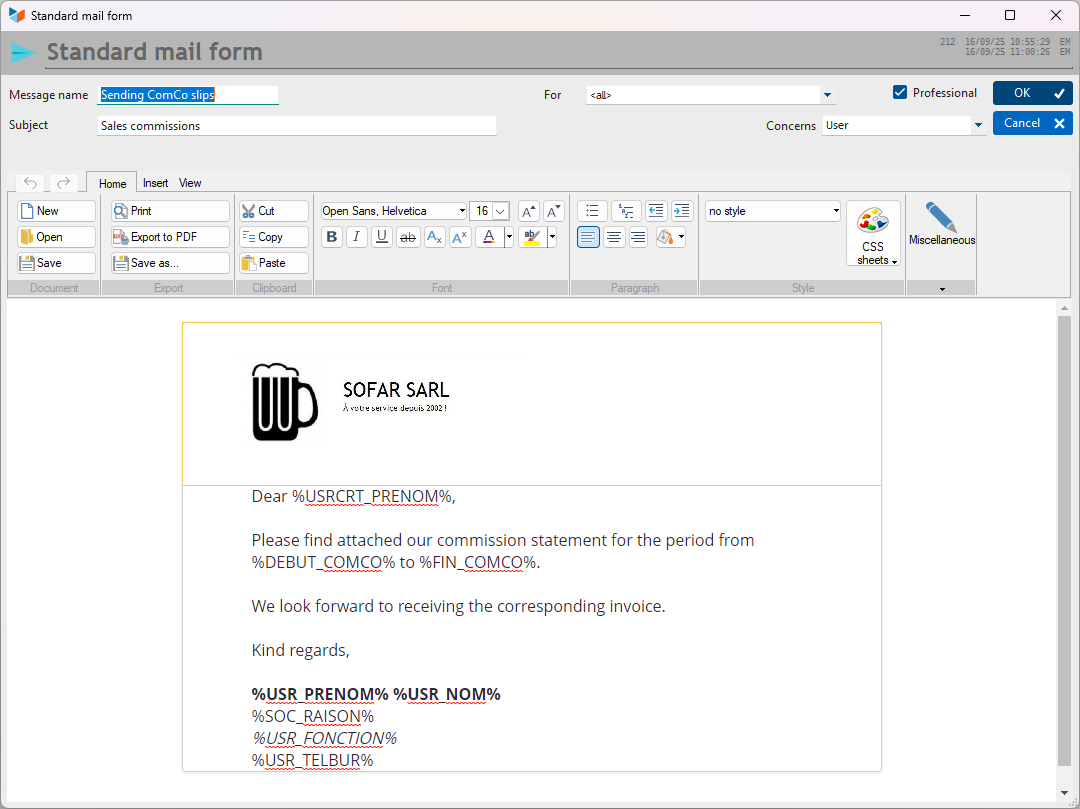
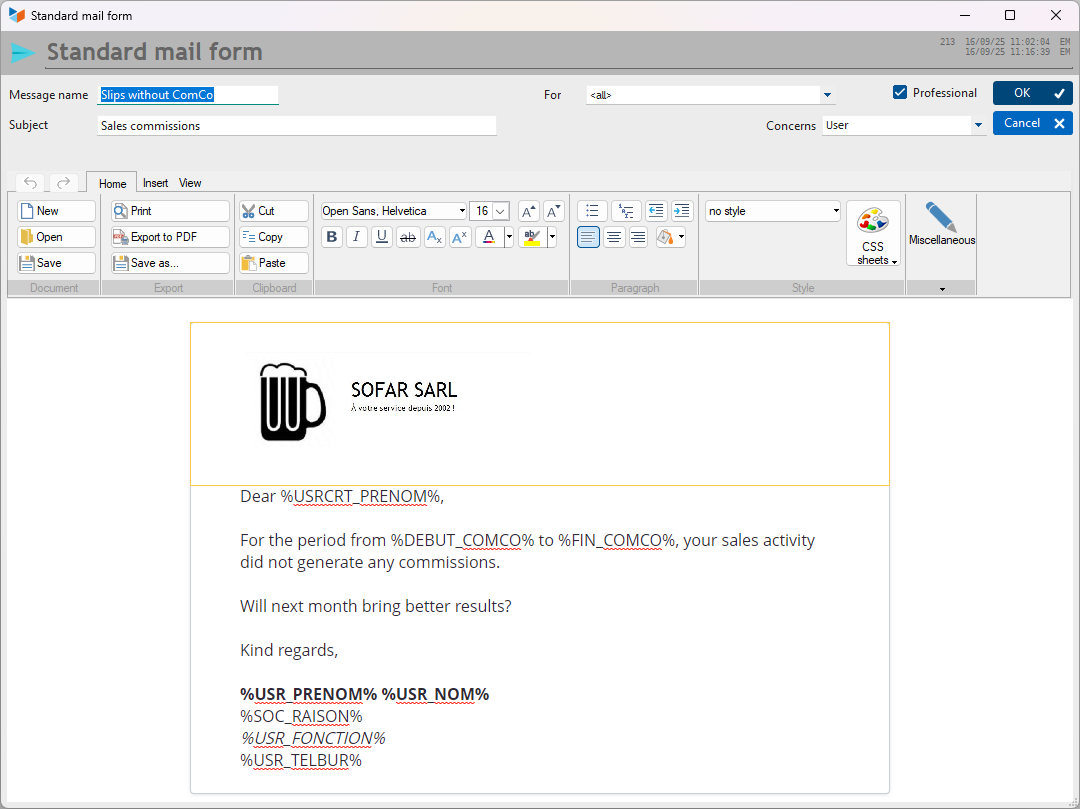
If the Copy sender box is checked, a copy of the email will be sent as a BCC to the sender (the logged-in user).
Commission rate settings
The Set commission rates button opens the screen below.
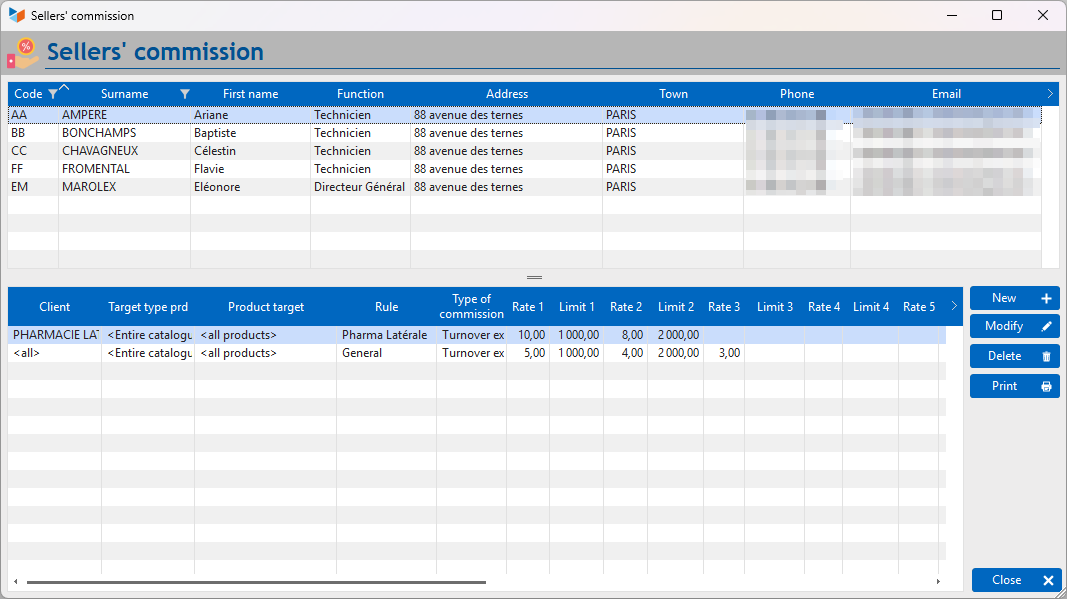
The upper part of this screen shows the users (not archived) declared in Gestan, and the lower part shows the conditions attached to them.
The Print button prints the commission sheet for the selected user.
CCO2 report - Commission sheet
The context menus for both tables allow you to duplicate a set of rules or a specific rule.
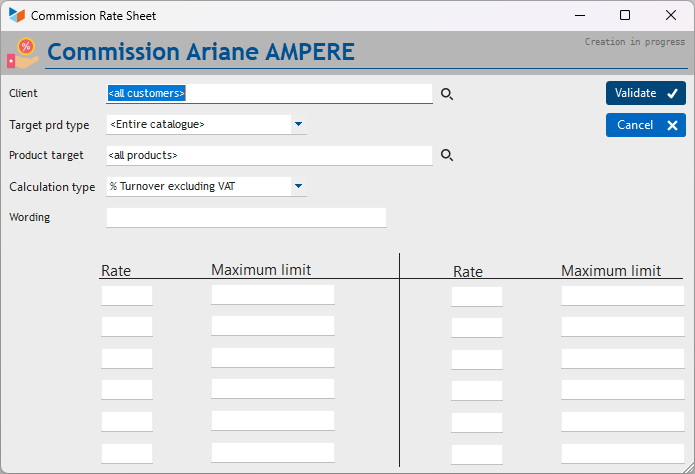
You can define commission conditions:
- on a contact
- on a product
- on a product sub-family (if managed)
- on a product family
Commissions are applied in the order of priority above: if the commission rules provide for a percentage for the contact, the product, the sub-family, and the family for the same sale, the contact's percentage will apply.
Si deux règles de commissionnement sont contradictoires, par exemple un taux X pour un client et un taux Y pour le même client, c'est la première lue qui va s'appliquer.
Pour chaque règle de commissionnement, il est possible de préciser par le type de calcul si le calcul doit être effectué selon le montant des ventes réalisées, ou selon les quantités vendues.
Le Libellé de la règle est facultatif, il permet d'identifier la règle appliquée pour le calcul de la commission.
Il est possible de définir jusqu'à 12 couples de Taux de commissionnement et de borne maximales.
Exemples
En mode de calcul par tranches
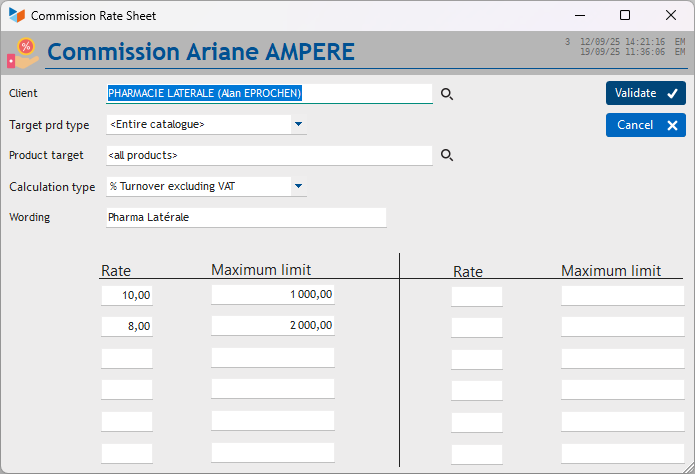
Ici, le commercial va toucher une commission de vente pour tous les produits vendus à la pharmacie Latérale.
- sur le chiffre d'affaire entre 0 et 1000 (euros), il touchera 10%
- sur le chiffre d'affaire entre 1000 et 2000 (euros), il touchera 8%
- au delà, il ne touchera rien du tout (dernier couple : 0% sur borne max 0)
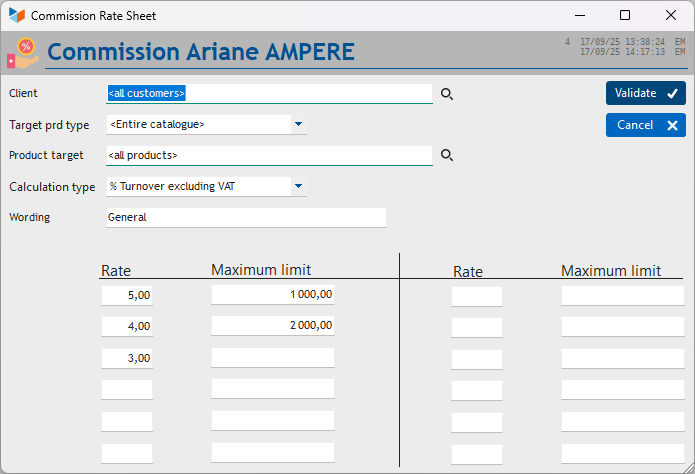
Here, the sales representative will receive a sales commission for all products in the catalogue. * On turnover between 0 and 1,000 (euros), they will receive 5%. * On turnover between 1,000 and 2,000 (euros), they will receive 4%.
- Above that, they will receive 3% (last pair: 3% on maximum threshold 0)
 In the example above, the rule applies to all sales.
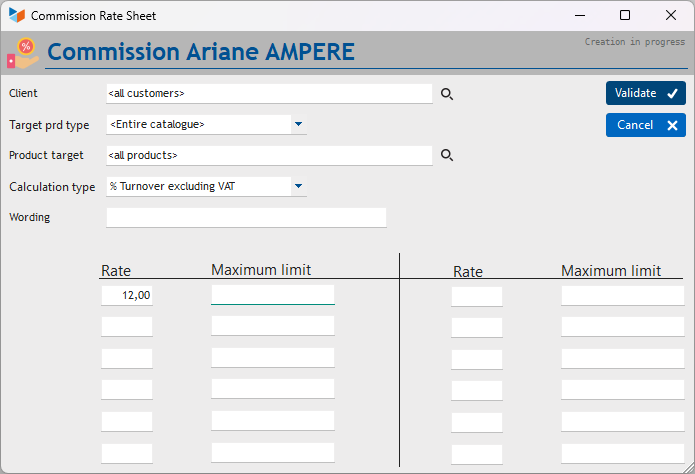
In the example above, the sales representative will receive 12% on the entire catalogue, from the first (euro) or the first (kilo) sold.
Calculation mode based on the maximum bracket
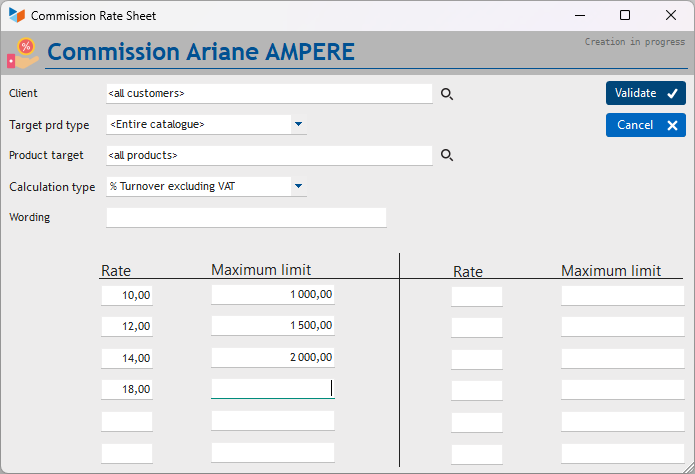
Here:
- if the salesperson achieves 800, they will receive 800 * 10%
- if they achieve 1700, they will receive 1700 * 12%
- if they achieve 3000, they will receive 3000 * 18%
How it works
Access: Accounting→Receipts and Disbursement→Sales commissions
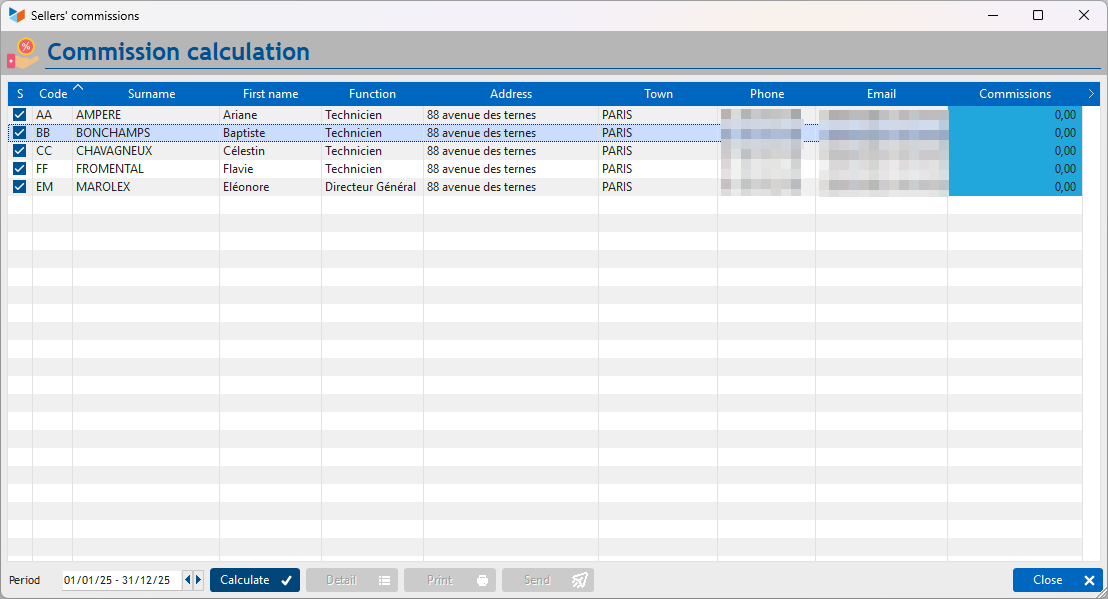
The screen displays the list of users (not archived) registered in Gestan. Initially, the Commissions column is set to zero, with a blue background.
The period selector allows you to specify the period for which commissions are to be calculated.
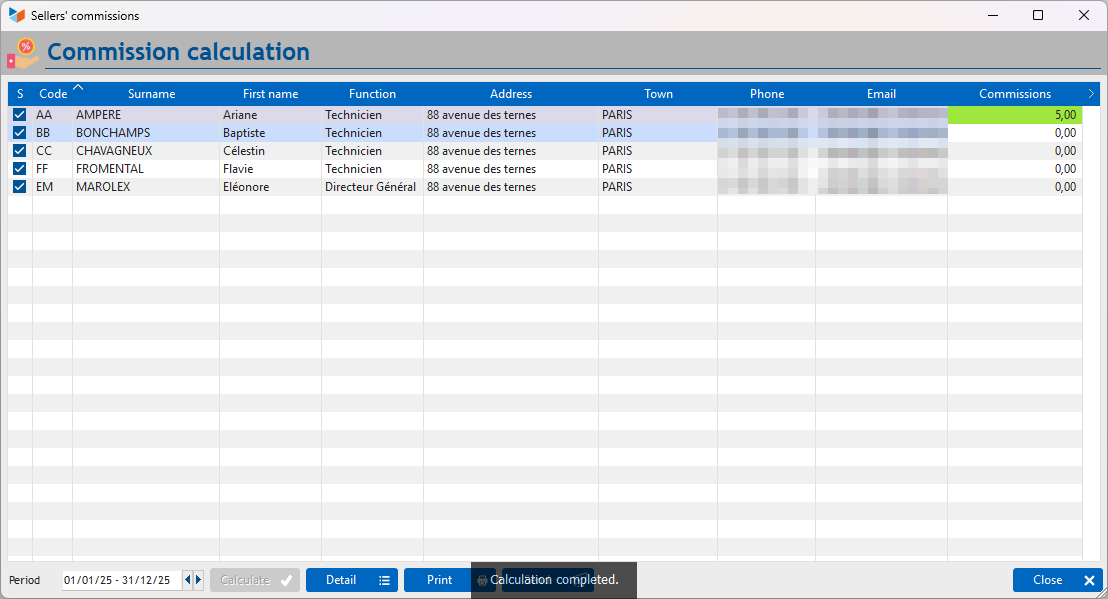
The Calculate button starts the calculation and fills in the Commissions column with the amount of commissions for the period.
Note: Commissions are calculated based on invoices with the status ‘transmitted’, ‘pending’ or ‘paid’ whose date falls within the selected date range, as well as based on credit notes with the status “transmitted” or ‘pending’.
The Print button launches the commission statement for the period, with or without the corresponding invoice statement, depending on the extension settings. The table's context menu allows you to print it for a single user.
CCO1 Report - Commission Statement
The Detail button (or double-clicking on the table after calculation) displays the details of the items taken into account and mentions the commission rule that has been applied.
The Send button allows you to send the commission status for the period by email (with or without the corresponding invoice statement, depending on the extension settings), as an attachment to the email template selected in the settings, for all those whose S box is checked, if the commission amount is greater than zero. In the case of a period without commission, a standard email indicating the absence of commission for the period can be sent if it has been configured. The table's context menu allows you to send it individually.
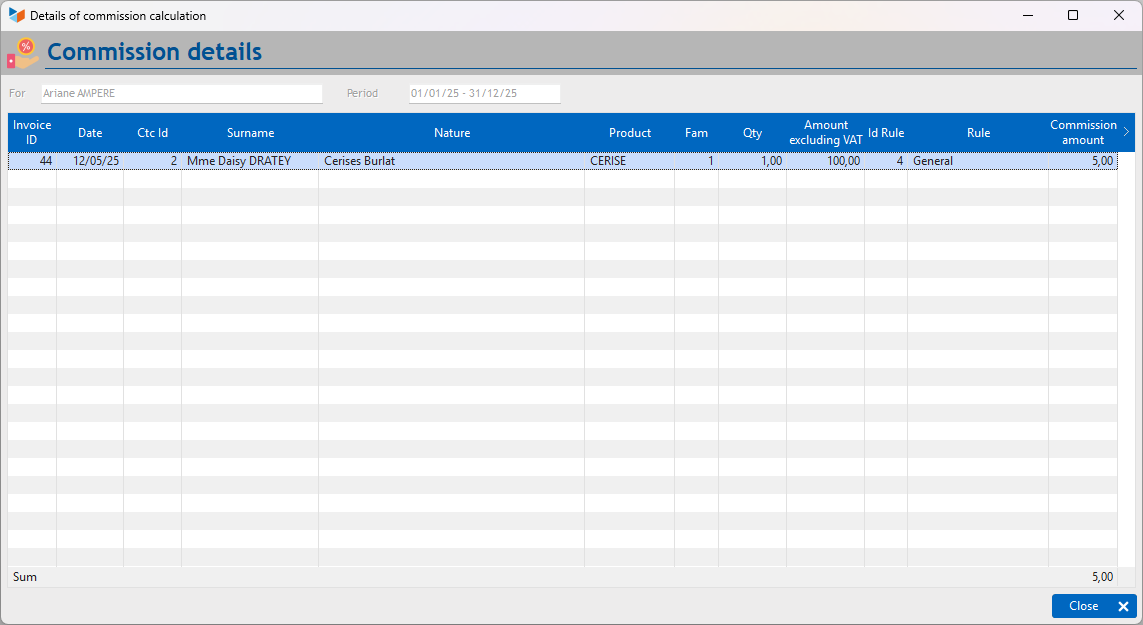
The detail screen specifies the rule (and, if it has been entered, the label that identifies it) applied for calculating the commission.
The Send button allows you to send the commission status for the period by email (with or without the corresponding invoice statement, depending on the extension settings), as an attachment to the email template selected in the settings, for all those whose S box is checked, if the commission amount is greater than zero. In the case of a period without commission, a standard email indicating the absence of commission for the period can be sent if it has been configured. The table's context menu allows you to send it individually.

The detail screen specifies the rule (and, if it has been entered, the label that identifies it) applied for calculating the commission.
Versions
| Version | Date | Description |
|---|---|---|
| 3.A1.01.01 | 25/09/25 | Migration to A1 format |
| 3.15.40.03 | 05/07/23 | Addition of a condition for taking into account invoices with settled status |
| 3.15.40.02 | 09/05/23 | Licence availability |
| 3.15.40.01 | 09/02/23 | Gestan 15.40 compliance |
| 3.15.40.00 | 07/02/23 | Added check for presence of PDF file before sending email |
| 3.15.39.14 | 30/11/22 | Added transmission of slips by email |
| 3.15.39.10 | 19/11/22 | Added calculation method based on maximum bracket + consideration of discounts |
| 3.15.39.05 | 18/11/22 | Added commission sheet + commission slip + improved calculation |
| 3.15.39.01 | 17/11/22 | Option to exclude family types + general commission slip report + consideration of composite products + consideration of credit notes |
| 3.15.39.00 | 12/11/22 | First version |
 Other ‘Extensions’ articles
CAISSETACT Touchscreen till (configuration)
CERFA : Generating CERFAs
COMMISSIONSCO: Sales commissions
CYBERBANQUE: Integration of banking files
DRM: Monthly Summary Declaration
EBAY: eBay Interface
ETIQUEXPED: Shipping labels
INTEROR: repair orders (RO)
OBJVENTE: Sales targets
PREPBON: Picking slips
PRESTIMPORT: Prestashop Interface
RELAUTO: Automatic mass invoice reminders
SAVTICKET: After-sales service tickets
SCAN: Scanning a barcode
SUIVCOM: Order Tracking