Table des matières
Special rates
 A1 proofreading not yet effective for this page. In the meantime, you can ask any questions on the forum.
It is possible with Gestan to apply a price different from the catalog price. You can therefore decide that:
- for all products in the catalog, between May 10 and 15, there is 10% discount
- for such product sub-family and for such supplier, all products are 2 euros
- for this product and that product, there are reductions by quantity (7 levels are available)
- etc.
With Gestan, the principle is as follows:
- you create special rates, for example “Partner rates”, “Large export rate”;
- you define the rules for calculating these prices, possibly combining the criteria;
- you link your customers to the rates they are supposed to pay;
- when establishing a quote or an invoice, Gestan informs you of the applicability of a special rate. You can then apply it, or not.
You can even occasionally apply a rate to a customer who does not normally benefit from it, or apply a rate other than the one they benefit from.
Settings
To activate the management of special prices, check the box Special prices management of general parameters.
 If the Hide purchase prices option is checked for the user (see user settings), the option will not be displayed .
Price list
Access: Products → Special prices.
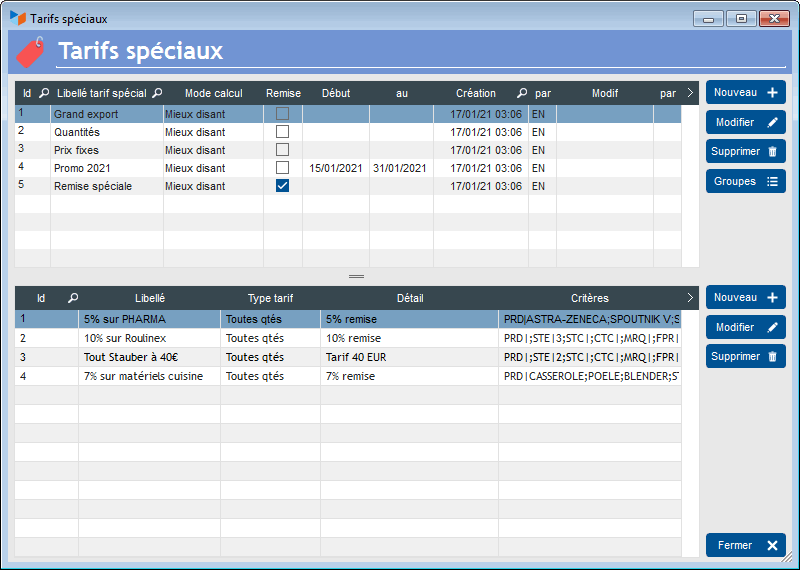
The list of special rates presents the different rates available.
The Groups button allows you to display the contacts benefiting from the selected rate, and to assign/unassign contacts to this rate.
In the example above, we see a “Grand export” price, made up of 4 rules: a discount of 5% on labor, 10% on the supplier Roulinex, and a clearance sale of 40 euros for Stauber products, and finally quantity discounts for product family 1.
Price sheet
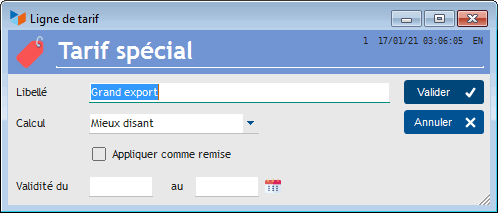
The price sheet allows you to specify the calculation method.
Indeed, let's imagine a price which provides 5% on all items from the supplier Roulinex, and 10% on all the “household appliances” product family. If one of your customers buys a Roulinex vacuum cleaner from you, therefore meeting both conditions, what discount applies?
- in “best saying” mode, it will be 10% - the best between 10 and 5
- in “lowest bid” mode, it will be 5%
- in “cumulative” mode, it will be 10% + 5% on the initial price, i.e. 15%
- in “cascade” mode, it will be 10% + 5% on the discounted price, or 16.96%
If the Apply as a discount box is checked, the discount will be applied… as a discount, i.e. you will see the discount on the line, instead of the sales PU excluding tax of the catalog price be modified. This has accounting implications, your discount will go to a Discount and Rebate account granted in the first case, but not in the second.
On the price sheet, it is also possible to specify start and end dates for the application of the price.
Rate line sheet
The rates are made up of cumulative rate lines, which themselves include cumulative criteria. Russian dolls, in a way.
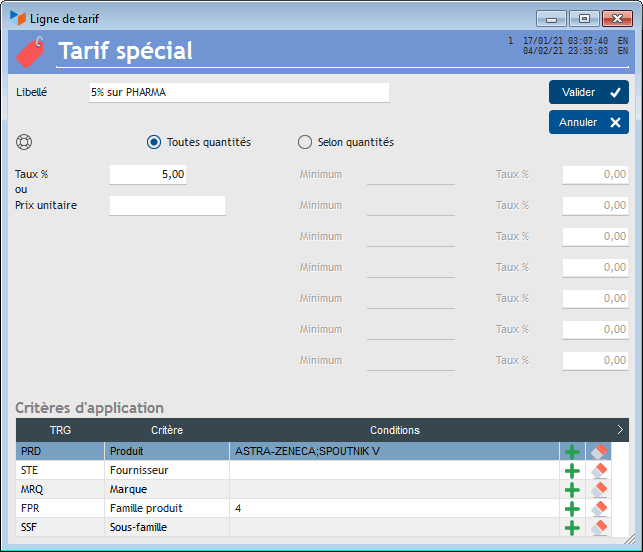
The label allows you to specify the purpose of the price line.
The first element to indicate is whether it is a “all quantities” discount (not depending on the quantities of product sold), or a “according to quantities” discount ( depending on the quantities sold by thresholds).
- In the case of an all-quantity discount, you can enter either a percentage that will apply to the list price, or a price that will replace the list price.
- In the case of a discount by quantity, you will be able to enter percentages which will apply to the list price, depending on the quantities of product sold.
In the example above, this is a 5% discount applied to the price.
 It is possible to enter negative rates, which therefore lead to a price increase.
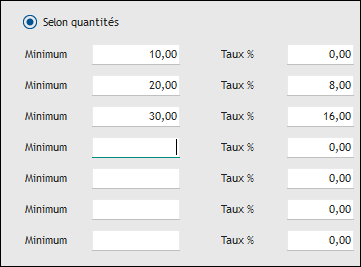
In the example above:
- no discount will be applied for any quantity less than 10
- a reduction of 5% of the price will be applied for any quantity greater than 20 and less than or equal to 30
- a reduction of 10% of the price will be applied for any quantity greater than 30.
For example, take a product whose sales price is 10 euros excluding tax, and for which you invoice a quantity of 60.
The final price will be:
- 10 * 10 euros
- + 20 * 10 euros * 0.95
- + 30 * 10 euros * 0.90
- i.e.: 560 euros (instead of 600 euros at the normal rate)
 If the price wording begins with the character @, this is the rate that applies to the maximum threshold reached for the entirety. Thus, in our previous example, the rate of 10% will be applied to the entire quantity, the price will therefore be 540 euros.
Application criteria
It is possible to specify application criteria for the rate.
You can define as a criterion:
- a product
- a supplier
- a brand of product
- a family
- a subfamily (if managed)
The criteria are cumulative between the different criteria: for the tariff to apply to the line, all the criteria must be respected.
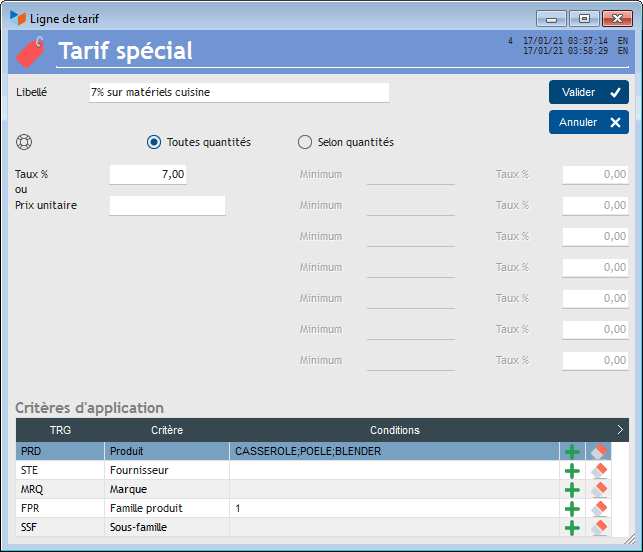
In the example above, the 5% reduction will be applied:
- if the product code is CASSEROLE or PAN or BLENDER
- and if the Product Family code is equal to 1
These conditions can be combined in all directions, but it is up to you to ensure consistency. For example, if CASSEROLE does not belong to family 1, no special rate will be applied for the CASSEROLE lines of the invoices. Likewise, if you have defined a valid condition for family 1 and sub-family 4, sub-family 4 must belong to family 1, because otherwise no product will be able to fulfill the Family=1 and Sub-family condition. Family=4. In this case, it was enough to put only subfamily 4.
Usage
Let's take the example of our “Large export” rate below, and link it to our client Philippe LAVILLE, via the Contact form.

When we create an invoice for Philippe LAVILLE, a specific icon will tell us that this customer benefits from a special rate.

If we click on this icon, the special rate application screen opens. For each product line, it indicates the unit price excluding catalog tax (PH HT Catalogue), the price calculated according to the special rate (PU HT Special rate), the Variation that the price listed represents in relation to the list price (this represents a discount rate), and the PU excluding tax currently indicated in the part in question (PU excluding tax Part).
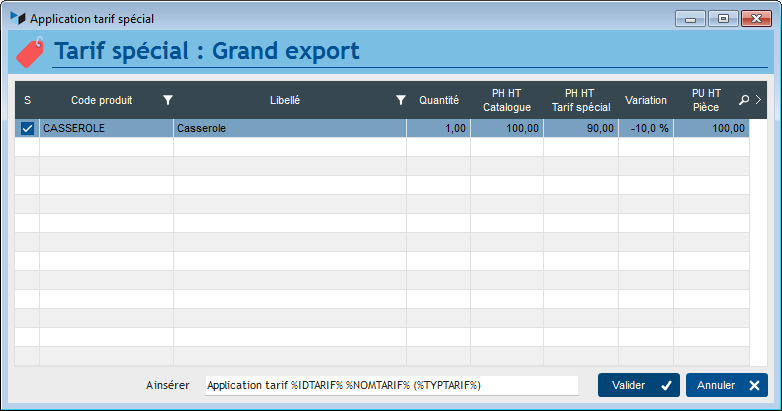
Here, we were liable for a reduction of 5% on saucepans, and 10% on CAPELETTI products, the price being the best price, the deduction retained is 10%.
The To insert zone allows you to automatically insert a wording in the notes of the document, in order to possibly indicate the application of a special rate. In this area, right-clicking automatically initializes it with a default label.
Upon validation, the unit prices excluding tax of the part are updated for all lines for which the (S) box is checked (if it is not checked, the PU excluding tax is updated with the PUHT catalog). If it had been a “To be applied as a discount” rate, the discount rates would have been updated with the content of the Variation column.

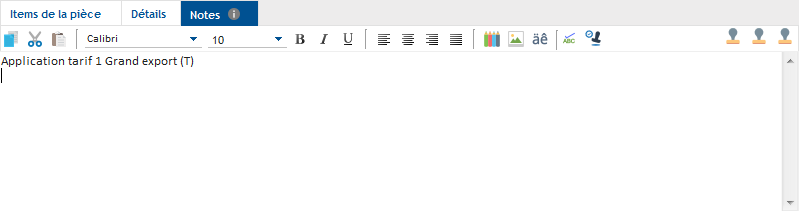
Here we have validated all price changes. Our pan went from 100 euros to 90, and the notes area was completed with the wording mentioning the application of the price.
Order of operations
Pay attention to the order of operations! First make your quote, order or invoice, enter the quantities, then apply the special rate. If you want to modify the quantity after applying the price, the price will not be recalculated: it is preferable to recreate the line with the correct quantity, and apply the price again.
 Other “Products” articles