Connections
 A1 proofreading not yet effective for this page. In the meantime, you can ask any questions on the forum.
Gestan allows you to manage several different companies, in completely separate databases (multi-company).
Whether single-station or networked, Gestan can operate in two modes:
- Classic mode, in which Gestan communicates directly with the database,
- Client/Server mode, in which Gestan communicates with a data server (the HFSQL server), which itself communicates with the database.
With connections, you can connect to this company in one mode, and to another company in another mode.
Classic or Client/server, how to choose?
There are two main criteria for this choice: the number of users, and data security.
- **Number of users: ** Up to approximately 10 users, using classic mode is the recommended mode, as it is the simplest. Beyond that, client/server mode is recommended: it will make it possible to optimize response times.
- **Data security: ** In client/server mode, the data directory is better protected from possible undue access, since the Gestan instances only communicate with the HFSQL server. And database administration operations are made easier.
Using the screen
List of connections
The screen presents the list of available connections.
It is only accessible to users with the “Administrator” profile.
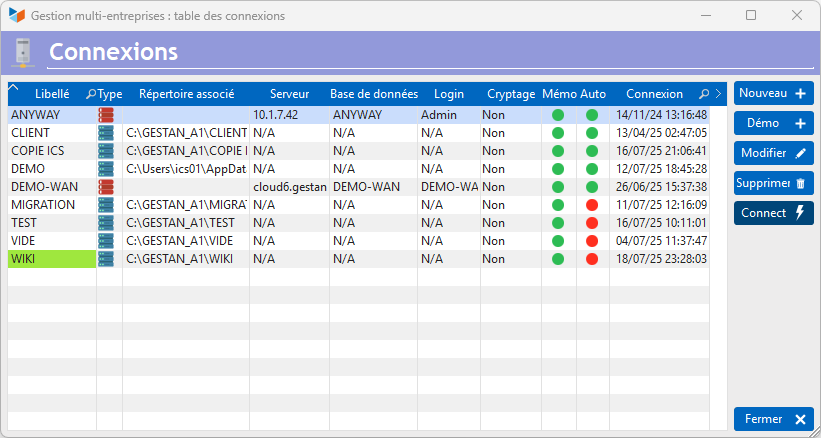
The Type column presents the type of connection: Local, LAN, or WAN.
The Memo button allows you to memorize, or not, the code and password of the last connected user, in order to pre-populate these areas in the Gestan connection screen (login screen).
The Auto button allows you to log in automatically, or not, from the moment the codes and passwords of the last user have been correctly memorized.
The Default button allows you to specify a default base. If no default base is specified, the login screen will always be displayed, with a combo box allowing you to choose the base on which the connection is requested.
The Connect button allows you to connect to the selected base.
Context menu
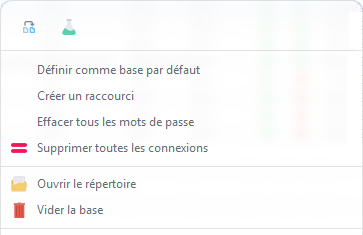
Clone for test allows you to create a copy of the selected database in the user's temporary directory, for testing purposes.
Empty the database allows you to delete all the files in the database, and possibly delete the corresponding connection after the deletion.
Clear all passwords allows you to delete all saved passwords for all bases for the logged in user, and to remove the automatic login and password memorization option.
Connection in classic mode
In this mode:
- the Gestan program communicates directly with the database
- the database is installed either in a machine directory or a network directory
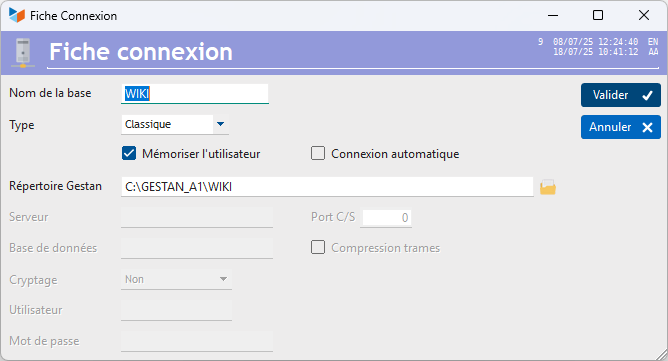
In local mode, simply declare the main GESTAN directory.
It is in this directory that the data will be stored (DATABASE subdirectory), the documents (DOCUMENTS subdirectory), the backups (BACKUPS subdirectory), and the resources directory (RESOURCES subdirectory).
Connection in LAN Client/Server mode
In this mode:
- the Gestan program communicates with an HFSQL server, which itself communicates with the database
- the database is installed either in a machine directory or a network directory
This connection method is recommended for around ten simultaneous Gestan users.
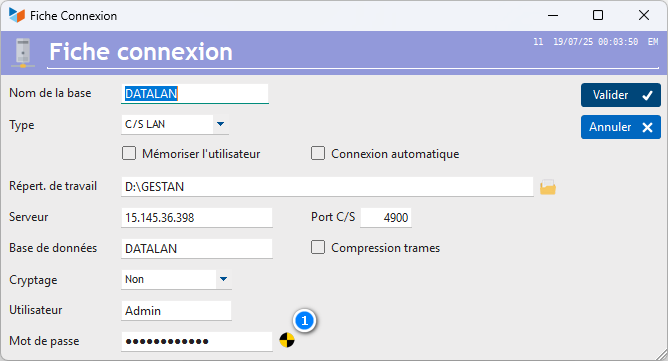
In this mode, you must specify a working directory, in which we will find the previous subdirectories, DOCUMENTS, BACKUPS, RESOURCE. This directory must be shared and accessible for reading and writing for all Gestan users. It can be located anywhere.
The Server zone is intended for the name of the HFSQL server, or its IP address (It is recommended to use the IP).
The standard C/S Port for Client/Server communication is 4900, but you can use another one (subject to the same setting on the HFSQL server).
Declare the Database under the same name as you imported it into the HFSQL server.
The frame compression option is possibly useful when connecting from a low-speed connection. In general, leave it unchecked.
For LAN use, it is not necessary to encrypt the data, as the network is deemed secure (it takes a few more microseconds).
Finally, enter the User code and the Password declared in the HFSQL control center.
The test button (1) allows you to check that the connection to the base is made correctly.
Connection in WAN Client/Server mode
In this mode:
- the Gestan program communicates with an HFSQL server, which itself communicates with the database
- the database is installed in a directory located outside the local network, and accessible via a specialized connection or the Internet
This connection mode allows remote access to your data, subject to a high-performance Internet link or connection.
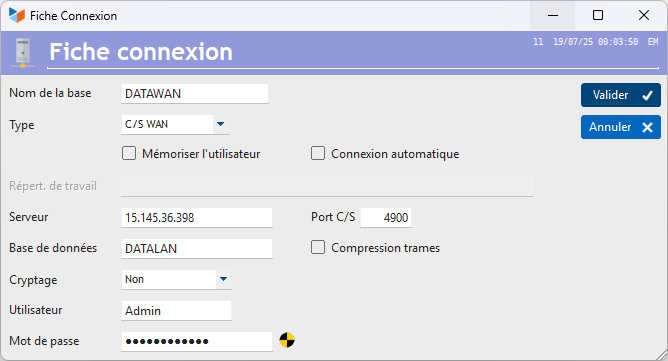
In this mode (remote connection), it is not possible to manage documents, so the working directory is not entered.
The connection parameters to the HFSQL server are identical to the previous case.
Connection with other types of bases
You can connect to other types of databases than HFSQL databases, using the coding convention below for the first four characters of your database name:
- %MSL: MySQL
- %SSR: SQLServer
- %MDB: MariaDB
- %PSL: PostgreSQL
- %ORA: Oracle
- %SLT: SQLite
For example, if your database is called GESTAN, if you name it %MSLGESTAN, the connection will be made to a MySQL database.
 This feature is available in Gestan for testing purposes. It requires you to have technical knowledge of the database system you want to use. It may require native access add-ons, downloadable from the PCSoft website.
Frame compression
The usefulness of frame compression depends on three criteria.
- the speed of the network used,
- CPU performance of client machines
- the type of data transported.
If you are using a Gigabit network, compression will degrade performance.
If you use a GPRS, EDGE or 3G type network (billed by the quantity of data), compressing the frames is an interesting option from an economic point of view.
If you are transporting images, video, sound, zip, etc., frame compression will not provide any performance gain.
In all other cases:
- on client machines with high-performance processors and if your application uses text or text memo type data to transport, it will probably be more efficient to compress the frames.
- on client machines with less efficient processors, the lower the transfer speed, the more interesting the compression will be.
Use the benchmark screen to make comparisons.
 Other Configuration articles
Connections
Corporate identities
General settings: Actions / Interventions / Projects
General settings: Computer
General settings: Contacts
General settings: Machines
General settings: Miscellaneous
General settings: Parts
General settings: Products/Stocks
General settings: The company
Header creation wizard
Part headers
Replacement reports and windows
SMS
Virtual printer