Menus, Widgets, User Buttons
 A1 proofreading not yet effective for this page. In the meantime, you can ask any questions on the forum.
As its name suggests, this screen allows you to configure the Gestan menus, the program opening buttons, and the display of widgets on the main menu screen.
It is accessible to all users, but validation is only authorized for users with the privilege “Modification of settings”.
Button management
**Access: ** Enterprise → User options → Buttons, menus, tabs, widgets.
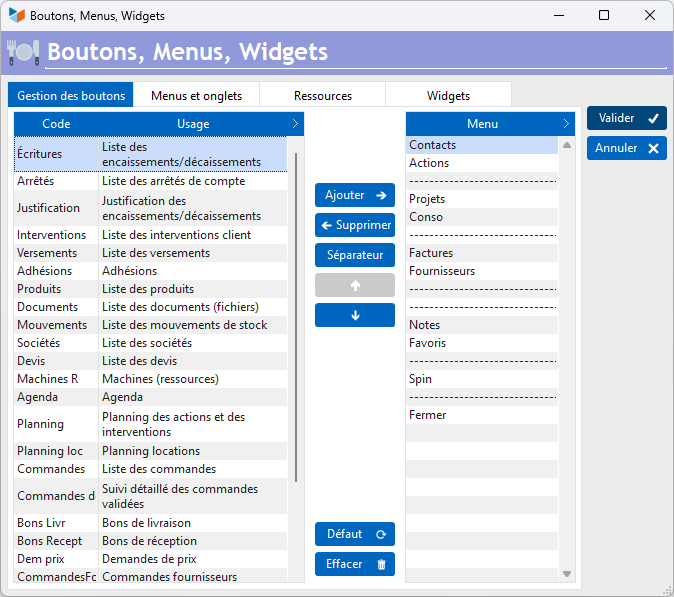
The buttons displayed on the Gestan main menu screen can be displayed depending on the profile of the user in question: for example, the “Enterments” button is not necessary if the user does not make any accounting entries.
The Joker buttons 1, 2, and 3 can be used to open any Gestan screen that does not have a dedicated button, but also any external program like the calculator or notepad, for example.
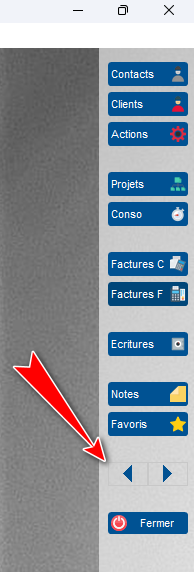
The Spin button

The spin button allows you to navigate from base to base: very practical when you manage several businesses with Gestan.
Menus and tabs

This tab allows you to configure the menus of the main Gestan screen: you can thus activate or deactivate the Gestan modules depending on the station held by the user.
In addition, you can configure the tabs displayed on:
- contact list
- the list of projects
- the list of products.
Personal menus
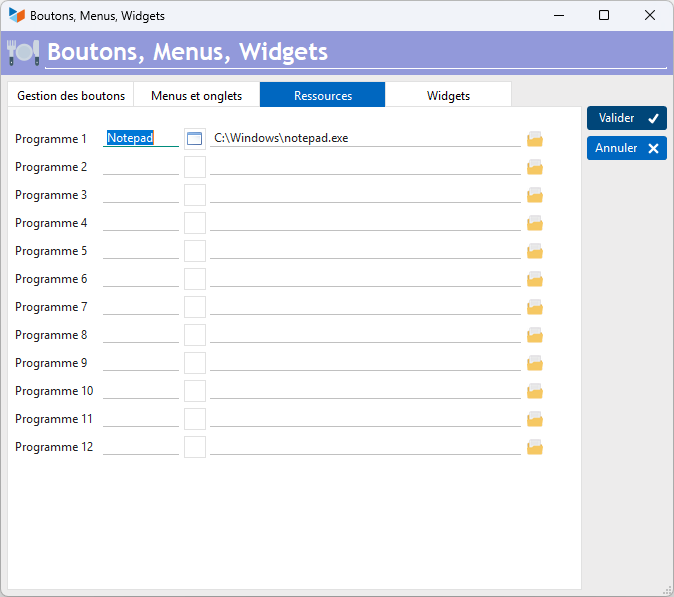
This screen allows:
- to configure shortcuts which will be accessible via the main menu of Gestan (“Shortcuts” menu). You can indicate here an executable, a URL, a directory, or a file.
- to configure the wildcard buttons, which can potentially open any Gestan window.
Widgets
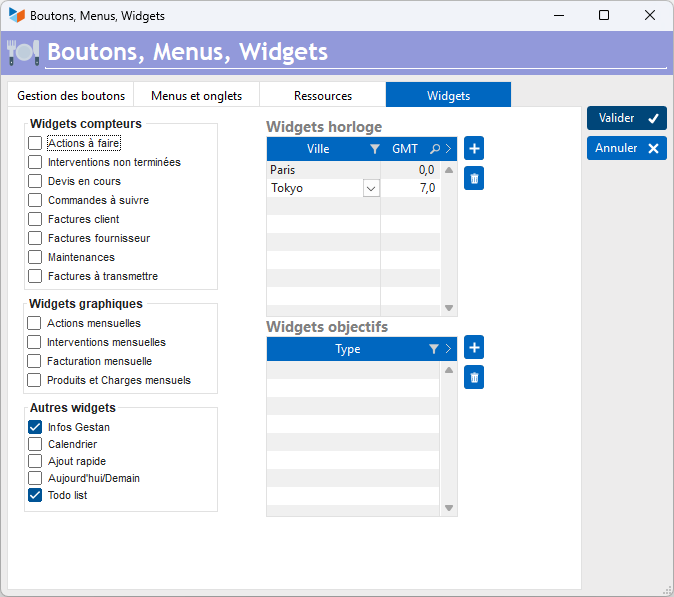
Widgets allow you to display information on the main Gestan screen. To change where they are displayed on the main screen, enter Edit mode via the main screen context menu.
Below are the widgets currently available:
| Widget | Description |
|---|---|
 | Action: It displays the number of actions in the statuses “to do”, “in progress”, and “pending” |
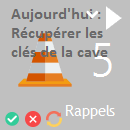 | Action of the day + Reminder: It displays the actions of the day to be done. It also allows you to change the status of the action to “Completed” or “In progress”, or to delete it. If activated, 10 minutes before the time of any action of the day, a pop-up window (below) will remind you of the imminent action to be done. |
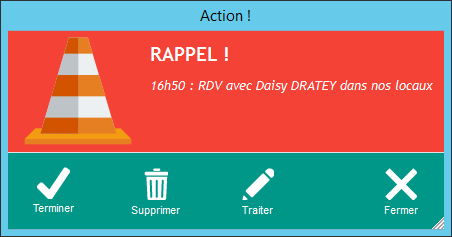 | Reminder pop-up |
 | Maintenance: It displays the number of maintenance actions in the statuses “to be done”, “in progress”, and “pending” |
 | Interventions: It displays the number of interventions in the statuses “to be done”, “in progress”, and “pending” |
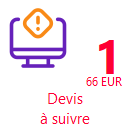 | Quote: It displays the number of quotes in the status “to be transmitted”, or “waiting for customer approval”, as well as the corresponding amount. |
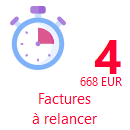 | Customer invoices: It displays the number of invoices in the statuses “pending”, “to be relaunched”, as well as the balance amount including tax to be received from these bills.  Please note that this widget can take into account, or not, invoices collected, and display, or not, invoices transmitted but not yet due, depending on the options selected via the right click on the reminder of invoices. Please note that this widget can take into account, or not, invoices collected, and display, or not, invoices transmitted but not yet due, depending on the options selected via the right click on the reminder of invoices. |
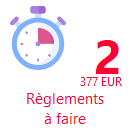 | Supplier invoices: It displays the number of supplier invoices in the statuses “pending”, “to be paid”, as well as the balance amount including tax to be paid for these invoices. Please note that this widget can take into account, or not, invoices paid by transfer, and display, or not, invoices for which payment is not yet due, depending on the options selected via the right click on the screen of reminder of invoices. |
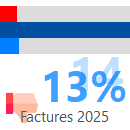 | Objectives: Displays an amount objective (billing, turnover, load, profit, etc.) in the central dark blue bar, and the compared to the achieved amount of the objective, as well as a potentially achievable amount pro-rata for the time spent in the exercise. Here, we have retained a 2019 turnover objective, of which we have achieved 62% as of 05/23/19, which means that we should reach 160% of the objective by 31 December (plus these are real numbers!) |
 | Invoices to be sent to customers. Practical for the business management assistant! |
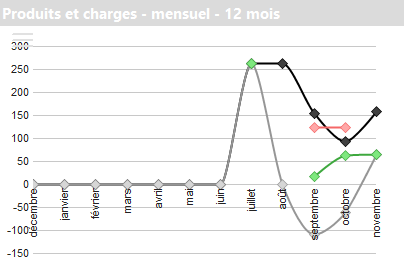 | Monthly Accounting: Displays monthly billing. In red the expenses (calculated by the sum of the entries linked to an imputation linked to an expense account), in green the products (calculated by the sum of the entries linked to a product account), in blue the difference between the two, and in yellow the accumulation of differences. |
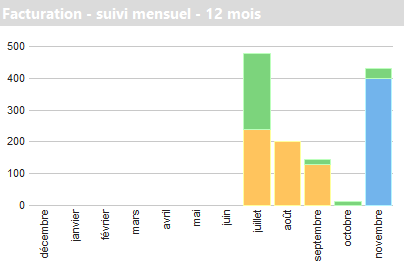 | Monthly billing: monthly invoices by status. |
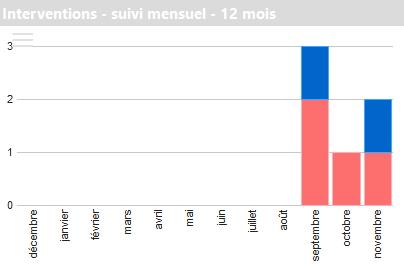 | Monthly interventions: Monthly interventions by status. |
 | ToDo list: Displays the list of actions and/or interventions to do. It is possible to configure this widget to open the classic list of actions, or the “com” list, via the combo For an action |
ToDoList Widget
This widget has a context menu allowing numerous operations on actions or interventions.

Finish by creating a consumption: ends the action, and opens the consumption creation screen, with the name of the consumption supplied by the wording of the action.
End with reason: ends the action, and indicates the reason for termination in the action comment.
Finish by creating the following action: ends the action, and opens a screen for creating a new action.
End with customer information: for actions linked to a contact, ends the action and opens the action report sending screen by email (standard message).
Finish with user information: completes the action, opens a Gestan user selection screen, and sends the selected users a completed action email.
**Inform users → by action information **: will generate an action information on the action, for each selected user
**Inform users → by standard email/new action **: sends to selected users either a standard information email concerning the action, or a new action email.
—————–
 Other Users articles