Product Configurators
The configurators allow you to improve the formatting of product labels.
Let's take the example of a coconut mat that you sell to measure, the sales unit being m².
Without configurator
This is what the product line looks like when adding this product to an invoice:

The product designation includes its name (1) and its possible description (2), and the pre-displayed quantity is 1 (3). The price is therefore that of 1 m².
With configurator

Using the Surface configurator, an intermediate screen will allow you to enter the length and width. By validating, the initial wording will be supplemented by a wording mentioning the length, width, and surface area, and the quantity will be the surface area. This wording will be built on the basis of a model, which will give you all the necessary flexibility.
 It is possible to add your own configurators - Possibly request them via the forum.
Usage

The configurator can be configured in the product sheet, see above.
Surface Configurator
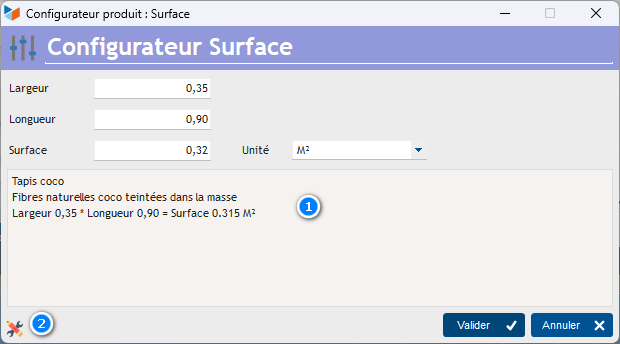
This configurator allows you to enter a length and a width, or an area (in this case, it will recalculate which of the two measurements was most recently reset to zero). It will update the product label, editable (zone 1).
The 2 settings button allows you to enter the configurator parameters.
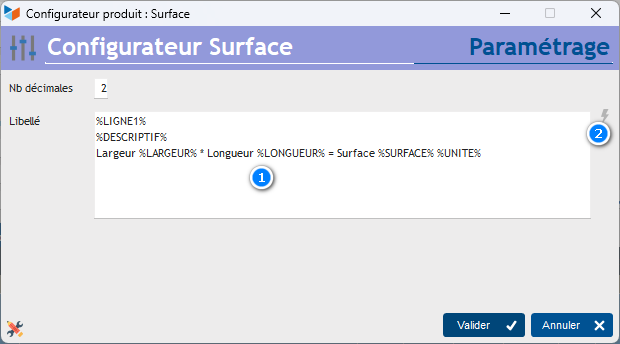
The 1 model area allows you to enter the model for constructing the product label. Here, %LINE1% will be replaced by the product designation, %DESCRIPTION% by its description, and so on for the other keywords. The 2 flash resets the model area (2).
Volume Configurator
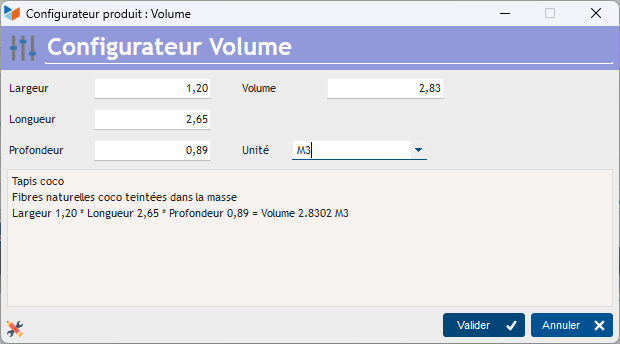
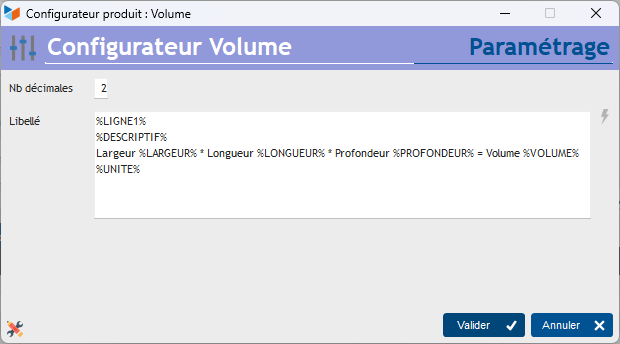
This configurator allows you to enter a length, width, and depth, or volume. It will update the product label.
EAN13/Series Configurator
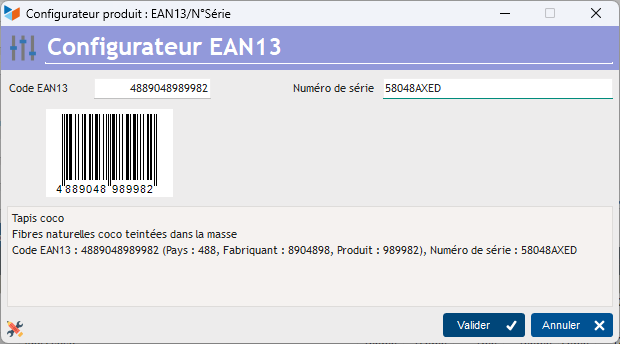
This configurator allows the entry (often using a barcode reader) of an EAN13 barcode or a serial number .
A graphical preview of the scanned EAN13 barcode is displayed.
The label is then generated based on the configuration template.

The configuration enable or disable the use of the EAN13 code or serial number.
An automatic validation function is available. This allows you to automatically move on to the next field when the scanning of the first field is completed. Useful when you want to scan an EAN13 code on the fly and immediately after a serial number for example.
The codes %LIGNE1% and %DESCRIPTION% allow you to include product information, while %CODEEAN13% and %NUMEROSERIE%. %EAN13PAYS%, %EAN13MANUFACTURER%, %EAN13PRODUIT% allow you to recover the elements extracted from the EAN13 code.
AudioProsthetics Configurator
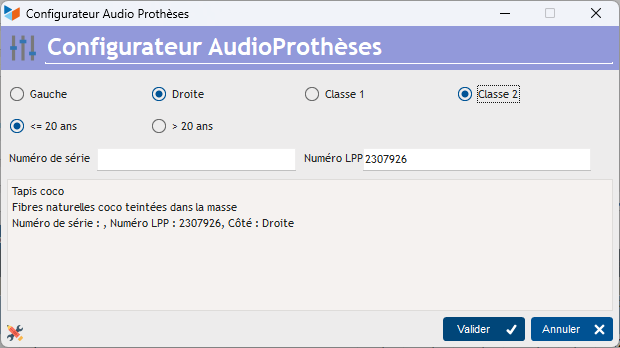
This configurator allows you to enter a serial number, the side on which the hearing aid will be located, a class, as well as an age range. The corresponding LPP number will then be automatically generated. It will update the product label, editable.
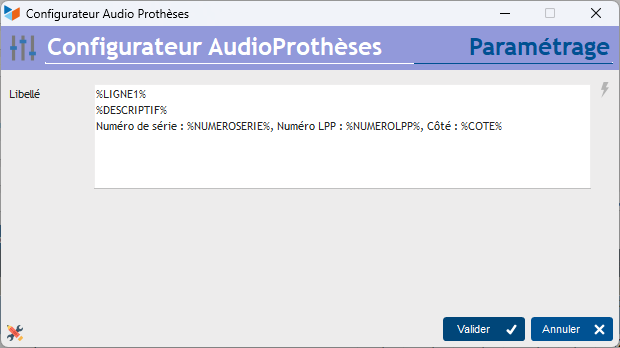
The template area allows you to enter how the product label should be constructed. Here, %LINE1% will be replaced by the product designation, %DESCRIPTION% by its description, and so on for the other keywords.
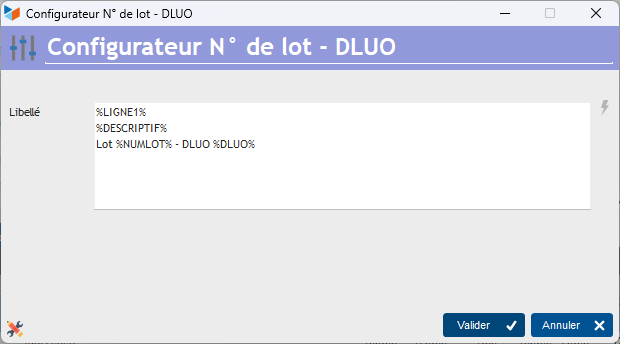
Configurator Batch number / DLUO
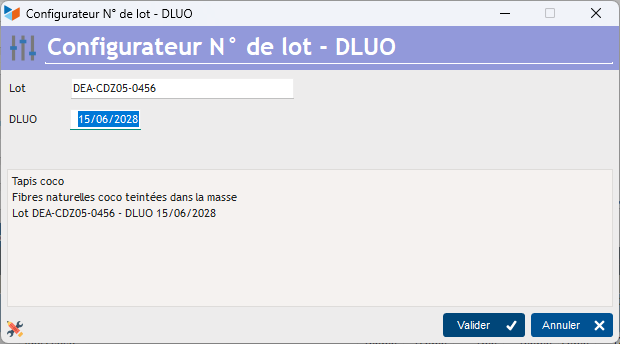
This configurator allows you to easily insert a batch number (you can possibly scan it with a handheld scanner) and a BBD.
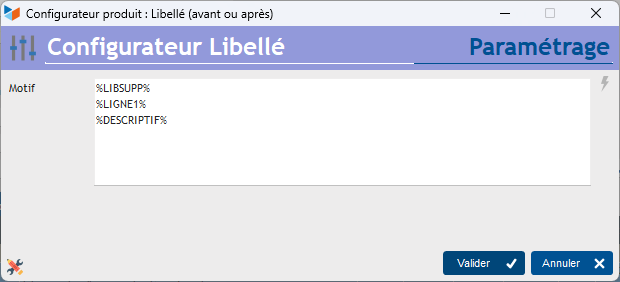
Front Label Configurator
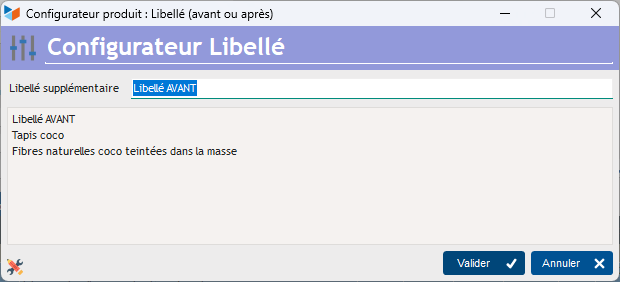
This configurator allows you to insert a label BEFORE the product label. It is useful, for example, for quantity surveyors to number positions.
It also allows you to insert a label AFTER the product label, for example the weight of a poultry.
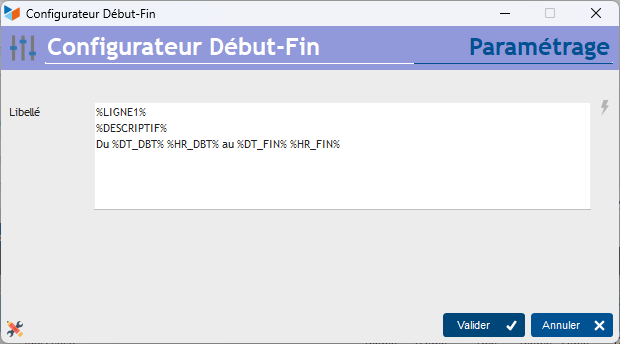
Start-End Configurator
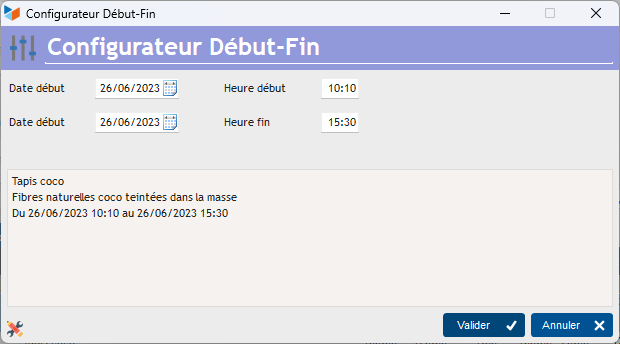
This configurator allows you to insert a start date and an end date in a label, as well as possible times.
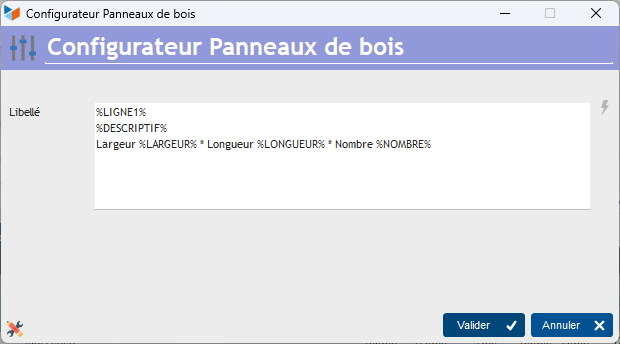
Wood panel configurator
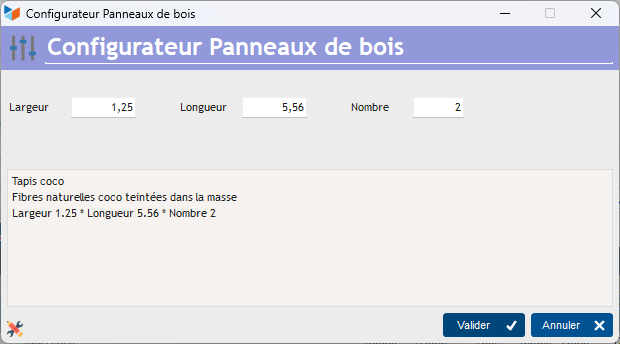
This configurator allows you to insert a width, a length, and a number of units. It will insert an area calculated from these three figures.
Coefficients Configurator
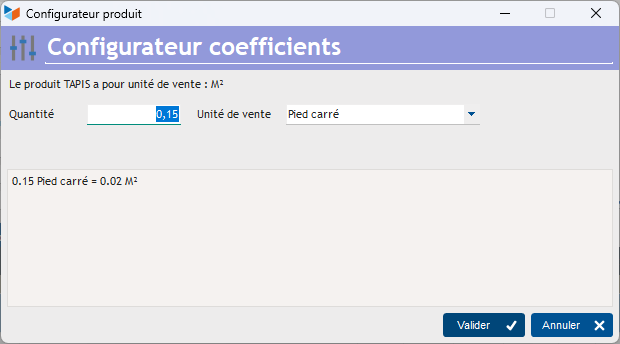
This configurator allows you to add the transformation coefficient from one unit to another to the product label. Here, the sales unit is m². The configurator allows you to specify the coefficient between m² and square foot: the label “(0.15 Square foot(s))” will be added to the product label.
 Other Billing articles
Billing: common elements
Customer Billing